Equipment Tables Tool bar |

|

|

|

|

|
||
|
Equipment Tables Tool bar |
|
|
|

|

|

|
Equipment Tables
Tool bar
|
Equipment Tables Tool bar |
|
|
|
|
|
||
|
Equipment Tables Tool bar |
|
|
|
|
|
|
|
|
||
The toolbars on the Equipment Database, Specification and Cable Log tabs are slightly different. These differences are noted in the tool descriptions.
The  ,
,  buttons allow you to hide the toolbar.
 Allow/deny editing equipment models
This button in the released position prohibits editing equipment models. The ability to view and assign equipment models remains.
|
Open the Equipment model card.
If the box is called from the Equipment Tables, then the box dynamically displays an image and filled-in parameters of the equipment model selected in the table.
See more: Equipment model card See also: Graphics window > Equipment model card, Table of cameras > Equipment model card, Table of Camera Models > Equipment model card
|
The button is available on the Equipment Database and Specification tabs.
Select the equipment model selected in the table for placement on the layout or to replace a model of equipment selected on the layout.
To place new equipment:
1.Open the Equipment Tables window by clicking the
To select equipment not already in the project, go to the Equipment Database tab. To select equipment already in the project, go to the Specification tab.
2. Select the desired equipment model in the table and click the Select button on the Equipment Tables toolbar.
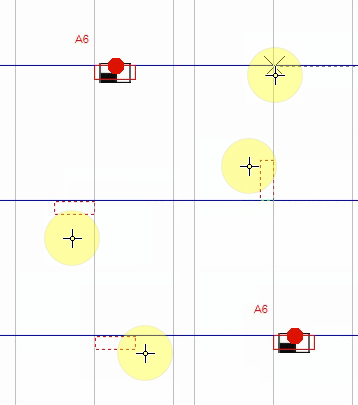
3. Then, sequentially mark the locations of the device of that model on the layout in the horizontal projection.
Placing devices is done with two clicks: The first click marks the device's corner point, and the second click marks the orientation of the device body relative to the marked point.
Cables consist of a chain of nodes connected by segments. Specify by clicking on the layout nodes of the cable. Before placing a node, you can set the node's height above ground in the Current Construction Parameters Panel.
To stop placing equipment, click
You can pre-edit the parameters of the equipment being placed on the Current Construction Parameters Panel that appears at the bottom of the Graphic window. The equipment on the layout can be simply copied, like cameras and constructions.
To replace model of equipment located on the layout:
1. Select the equipment on the layout.
You can select multiple pieces of equipment at once.
2. In the Current Construction Parameters Panel or Selected Editing Panel that appears, click the
3. The Equipment Table window will open. To select equipment not already in the project, go to the Equipment Database tab. To select equipment already in the project, go to the Specification tab.
4. Select the desired equipment model in the table and click the Select button on the Equipment Tables toolbar.
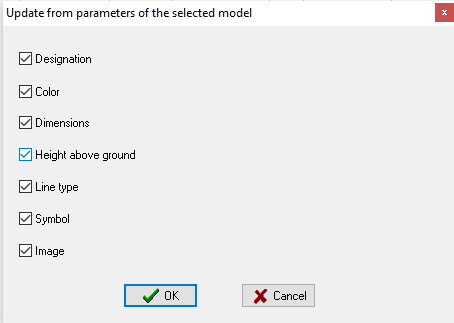
If the Equipment Tables are opened to replace already placed equipment, clicking the Select button will replace model of the equipment selected on the layout. Before this, a dialog box will appear in which you can select which parameters of the placed equipment should be replaced and which should remain unchanged.
If equipment is selected from the Equipment Database tab, it will be copied to the Specification tab.
Clicking the arrow to the right of the Select button opens a menu where you can choose whether to close the Equipment Table after making your selection.
The Select button becomes unavailable if the equipment selected in the table cannot be selected for placement on the layout or replacement:
See more: Editing cables, Modeling Devices and Cables. Specification and Cable log, Adding an Equipment model to the Equipment Database
|
+AI (import equipment model using AI)
Add a model of any equipment or cable using Artificial Intelligence. This button opens a window with a step-by-step guide on importing any model from datasheet.
For more information, see Import a camera, equipment or cable model using AI
|
Clicking this button creates a new row at the bottom of the table for entering parameters for the new equipment model.
In the Specification and Cable Log, this button allows you to add custom rows to the tables. A row in the Specification will be considered a section or subsection heading, meaning the Name field will be filled in bold and underlined if the Units field is empty.
Clicking the ellipsis button in the Type column opens the Equipment Types library window, where you can assign a predefined equipment type with symbol and alphanumeric designation to a new row. Selecting a type from the library will assign values to the Device, Cable, Camera, Symbol, Designation and Color fields.
If the Equipment Type has not been assigned, select in the Device, Cable column whether the new equipment will be a Device, Cable, or something else.
To configure the remaining parameters of the equipment model being added, click the table cell twice, at least half a second apart. To edit the selected cell, press Enter. Depending on the parameter type, cells may allow selection from a list or entry into a simple or complex drop-down form.
When you click on a cell with Photo, the Equipment Model Card appears with an image, and instead of a drop-down list, a menu appears that allows you to cut, copy, paste, delete, load from a file, or save the image to a file.
You can paste prepared fragments from an Excel spreadsheet into the table. However, the number of cells and data types must match.
See more: Adding a Model Using Artificial Intelligence, Adding an Equipment model to the Equipment Database, Equipment parameters
|
Create a copy of the current table row at the bottom of the table. The current row is the one with the arrow to the left. Parameters of the new row can be edited.
See more: +New row
|
Delete the selected row in the table. When deleting a row from the Specification tab, the equipment assigned to the deleted model will no longer be assigned any model. You can delete the equipment itself from the layout or leave it and replace its model.
See also: Find on Layout, Find camera, Table of Cameras>Find on Layout, Table of Camera Models>Find on Layout, Territories>Find on Layout, Camera Groups>Find, Camera List>Find
|
The button is available only on the Specification and Cable log tabs.
On the Specification tab, find and select on the layout in the Graphic window all equipment of the model selected in the table. On the Cable Log tab, find and select on the layout in the Graphic window the cable section selected in the Cable Log.
|
The button is only available on the Equipment Database tab.
Open for editing the Equipment Types library.
See more: Equipment Types
|
The button is only available on the Specification tab.
Copy the selected row from the Specification tab to the Equipment Database tab. If the same equipment model already exists in the Equipment Database tab, you'll be prompted to overwrite it.
|
The button is only available on the Equipment Database tab.
Copy the selected row from the Equipment Database tab to the Specification tab. If the same equipment model already exists in the Specification tab, you'll be prompted to overwrite it.
When placing equipment from the Equipment Database to the layout, this equipment is automatically copied to the Specification.
|
The tools in this group operate with the entire equipment model database, regardless of whether the data is visible or not.
Save Equipment Database, Specification or Cable Log to file.
When filtering is enabled, you can save filtered table records.
Possible formats:
* .edb - VideoCAD internal format compatible with previous versions; * .edz - VideoCAD internal format. This is a data file * .edb and images (if they exist) packed in a Zip archive; * .ed2 - open text format. Data, table structure and images recorded in one text file. Data saved in * .ed2 cannot be added to existing data, this format only supports full database replacement. The * .ed2 format stores not only data and images, but also the table structure; * .cvs - comma separated values. The default delimiter is ';' can be changed in the Options box; * .txt - text file.
When selecting the * .edb, *. Cvs, *. Txt formats, images are saved as graphic files in the save directory of the data file.
The preferred format for backup and creating your own database of equipment models for distribution is * .edz. The * .cvs and * .txt formats are offered for export, they cannot be opened in VideoCAD.
|
Load from file Equipment Database, Specification or Cable Log.
Possible formats:
* .edb - VideoCAD internal format. When opening a file, images are searched in the directory where the data file is located; * .edz - VideoCAD internal format. This is a data file * .edb and images (if they exist) packed in a Zip archive;
In case of *.edz format, VideoCAD will ask: "Replace the model database?" If you select Yes, VideoCAD will completely replace the existing database with the open database. If you select No, VideoCAD will append the open database to the existing database.
* .ed2 - open text format. Data, table structure and images recorded in one text file. Data saved in * .ed2 cannot be added to existing data, this format only supports full database replacement. The * .ed2 format stores not only data and images, but also the table structure.
|
The button is only available on the Equipment Database tab.
Add a database of equipment models from a file to VideoCAD Equipment Database.
Possible formats::
* .edb - VideoCAD internal format. When opening a file, images are searched in the directory where the data file is located; * .edz - VideoCAD internal format. This is a data file * .edb and images (if they exist) packed in a Zip archive;
Data saved in *.ed2 cannot be appended to existing data; this format only supports full database replacement.
See also: Adding a Model Using Artificial Intelligence
|
The tools in this group belong to the visible table.
The button is available only on the Specification and Cable log tabs.
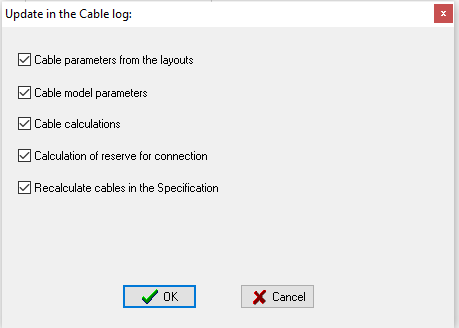
Automatically fill the Specification and Cable Log with project information. With the Cable log, clicking this button will open a form where you can select which information to update in the table.
If the Add camera models checkbox is checked, the camera models used in the project will be added to the specification.
The specification doesn't include the cameras from the project, but rather the camera models used. If a camera isn't listed in the specification even though the checkbox is checked, you may not have assigned a model to the camera.
|
Export table of equipment models to any of the following formats: *.txt, *.csv, *.htm, *.rtf, *.xls, OLEXLS, *.xlsX, *.xml. File format can be chosen in Save as dialog box appeared. If OLEXLS is selected, MS Excel opens (if installed) into which the exported table is loaded.
You can export selected fragments using pop-up menu.
|
The button is available only on the Equipment Database and Cable log tabs.
Import table of models from formats: text and unicode text. The file format is selected in the open file dialog. It is convenient to import data through the clipboard, by copying tables or table fragments from MS Excel and pasting models into the Table..
|
Print full table or a selected fragment of the table. Print dialog box will open in which it is possible to adjust printing options.
|
View - is a set, width and order of visible columns. In real projects there is no necessity to use all parameters. At various times different parameters sets are necessary. You can hide unnecessary columns, arrange the rest columns in required order and save obtained view. After that at any moment you can restore the saved view (i.e. set and order of visible columns).
If necessary, you can change not only the positions and widths, but also the column headings in the language file.
The list contains Default Views. By selecting the desired View, you can immediately get a set of parameters ready for a specific task. You can edit default views and create your own views based on them.
The view PDF Report of the Specification and Cable Log is used to set the set, order and column widths for the PDF report.
|
Compress columns so that the table is placed completely on the screen or restoring normal width of columns.
|
Hide selected columns.
To select a column, move the cursor to the border between the column header and the column data. The cursor should turn into a downward-facing arrow. Click on this border. To select multiple columns, hold down Ctrl or drag the cursor while holding down the left mouse button. To select a range of columns, hold down Shift.
See also: Visibility of Columns
|
Show all columns including hidden ones.
|
Save current table view. Dialog box will open, in which it is necessary to enter view name. It may be a name of an existing View or a new name. The new name will appear in the Table view list.
|
In the list there are all earlier saved views of the table. To load a view, just choose its name in the list.
|
Delete the view, the name of which is displayed in the Table view list.
|
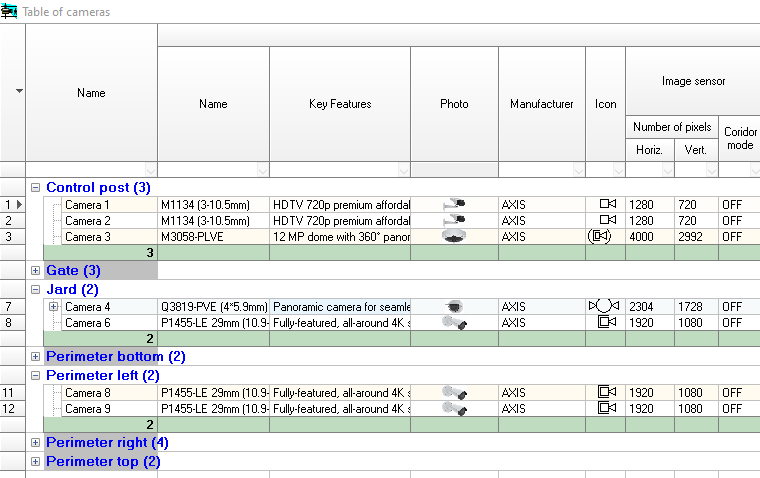
Check the corresponding checkbox to group table rows by column values.
For example, cameras and devices can be displayed in groups rather than individually. The Devices group can be further subdivided into Power Supplies, Routers, Control Panels, Detectors, Alarms, Readers, DVRs, and so on. Cables can be displayed in groups by layout, layer, or cable type.
For each group, the sum values for some columns are calculated.
You can group table rows by any columns and their combinations, and build multi-level trees from rows using the Grouping Panel.
|
See also: Equipment Tables, Table Interface, Pop-up menu, Equipment parameters, Modeling Devices and Cables. Specification and Cable log, Adding an Equipment model to the Equipment Database