

Graphics window Selection editing panel |

|

|

|

|

|
||
|
Graphics window Selection editing panel |
|
|
|
|

|

|
Graphics window
Selection editing panel
|
Graphics window Selection editing panel |
|
|
|
|
|
||
|
Graphics window Selection editing panel |
|
|
|
|
|
|
|
|
||

The Selection editing panel appears in place of the Current construction parameters panel when there is more than one selected object on the layout.
The tools on the Selection editing panel are similar to the tools on the Current construction parameters panel, but they affect all selected objects at once. Only the tools that apply to the currently selected objects are enabled on the Selection editing panel.
For example, using the Panel, you can raise all selected objects to another floor in a few clicks, change wallpaper in the room, color, thickness and height of walls, replace 3D models, replace doors or windows, etc.
Tools 1..5 affect 3D Models  , 6,7 - affect Walls
  , Double lines
  and Apertures in walls
  , other tools are universal and affect on objects of many types.
1. In the combo box, you can set the horizontal rotation angle of all selected 3D models.
2. If the checkbox is checked, then when setting the height of all selected 3D models in the combo box 10, other sizes of these 3D models will also change proportionally.
3. The button calls up a pop-up menu with which you can replace all selected 3D models with others or rotate all selected 3D models by a specified angle. For example, you can quickly replace all windows and doors in a room, cars, people, etc.
4. In the combo box, you can set the speed of all selected 3D models. The speed is set in meter/sec or km/hour (feet/sec or miles/hour).
5. If the checkbox is checked, then when the shading calculation is enabled for the active camera and when 3D models are taken into account when calculating shadings, the selected 3D models will be considered as obstacles when calculating shading.
6. In the combo box you can set the thickness of all selected walls , double lines , apertures in walls . With buttons 7 you can select in which direction the objects will expand or contract.
8. In the combo box, you can set the height to which all selected objects should be lowered or raised. Clicking on the buttons next to the box will increase or decrease the height above the ground of all selected objects by the value specified in the box. When raising or lowering, the relative heights between objects are maintained, so you can raise an entire floor with a large number of objects at different heights.
9. In the combo box you can set the height above the ground for all selected objects.
10. In the combo box you can set own height  for all selected objects. If checkbox 2 is checked, then when setting the height of all selected 3D models in the box 10, other sizes of these 3D models will also change proportionally.
11. In the combo box you can set the maximum height  for all selected objects. Maximum height = Height above ground + Own height of the object.
12. If the checkbox is checked, then when you change any of the colors 13, this color will be assigned to Color in 2D, 3D and Printing color of all selected objects.
13. By these buttons you can set Color in 2D, 3D and Printing color of all selected objects.
14 The buttons control the materials of the selected objects:
 allows you to assign the same material to all selected objects, assign images to devices
 allows you to assign the same front side material to all selected walls , assign symbol to devices
 allows you to swap sides of all selected walls (swap front and back surfaces).
 allows to assign the same material to the top of all selected
  Polygons.
 allows you to assign a license plate to all selected vehicles.
 allows you to assign a picture to all selected
  3D images.
 button removes material (license plate) from all selected objects, delete symbol of devices
15. Control buttons for selected devices and cables
 replace the device model on the layout with any other from the Equipment Database or Specification. Clicking this button will open the Equipment Tables.
To select equipment not present in the project, go to the Equipment Database tab. To select equipment already in the project, go to the Specification tab.
Select the equipment model to replace and click the Select button on the Equipment Tables toolbar.
Before the replacement, a dialog box will appear allowing you to select which parameters of the placed equipment should be replaced and which should remain unchanged.
 edit the designation. When renaming, you will be prompted to keep the numbering.
 show/hide the alphanumeric designation.
 show/hide the extension line.
 show/hide the equipment model name in the designation.
 show/hide the equipment installation height in the designation.
 change the size of the device symbol. In the pop-up combo box, you can specify a precise size in pixels or choose:
| • | default - the symbol size set in the Options box; |
| • | =picture - the symbol size is equal to the size of its image, in pixels. |
16. The Transparency checkbox makes all selected Polygons transparent in the Graphics window and also toggles the transparency of images and symbols of Devices  .
.
Many operations related to changing value in program boxes outside the Selection Editing Panel can be applied to all selected objects at once. To apply a value in any box to all selected objects, right-click on the box and select the desired menu item.
For example, you can change model of all selected cameras at once. To do this:
| • | Select necessary cameras on the layout |
| • | Right click on the Model of active camera combo box, then click on the Assign to selected cameras pop up item. |
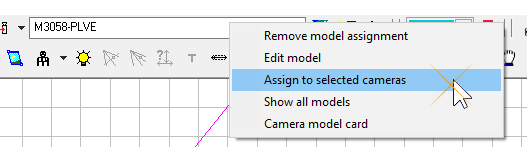
In the same way, you can assign the same lens focal length, installation height, or other parameters to all selected cameras in the Camera Geometry box.
If a tool can be applied to all selected objects, then when the selected objects appear on the layout, it turns purple. For example, you can change the type of projections of the view areas for all selected cameras at once using the buttons in the View group.  When selected cameras appear, other than the active camera, the buttons turn purple
  .
.
You can show or hide the Extension line for camera name. Other tools and menu items may also have this property.
To select only desired objects on the layout use the Selection Filter tool. To select all objects, use the Select All main menu item or the keyboard shortcut Ctrl+A.