Adding an equipment model to the Equipment Database
Feedback on: VideoCAD - Adding an equipment model to the Equipment Databaseadd_eq_modelExamples of work with VideoCAD > Adding an equipment model to the Equipment Database /Dear CCTVCAD Software,
Adding an equipment model to the Equipment Database
Starting with VideoCAD 16, the easiest, most complete, and most accurate way to add equipment to the Equipment Database is by using Artificial Intelligence. This method requires no special knowledge. You can quickly add any equipment and immediately incorporate it into projects using all the capabilities of VideoCAD.
Below is a description of the principles of manually adding models, the only option in previous versions of VideoCAD:
To add a new equipment model to the VideoCAD Equipment Database:
If the +New button is disabled, you can't edit the table. Check the status of the Enable/Disable Editing button in the lower left corner. It should be red . If it is blue just click it to enable editing.
When searching for a suitable type, you can use searching, filtering and sorting, just like in the Equipment Database.
If there's no suitable type in the Equipment Type library for the equipment you're adding, you can add a new type to the library
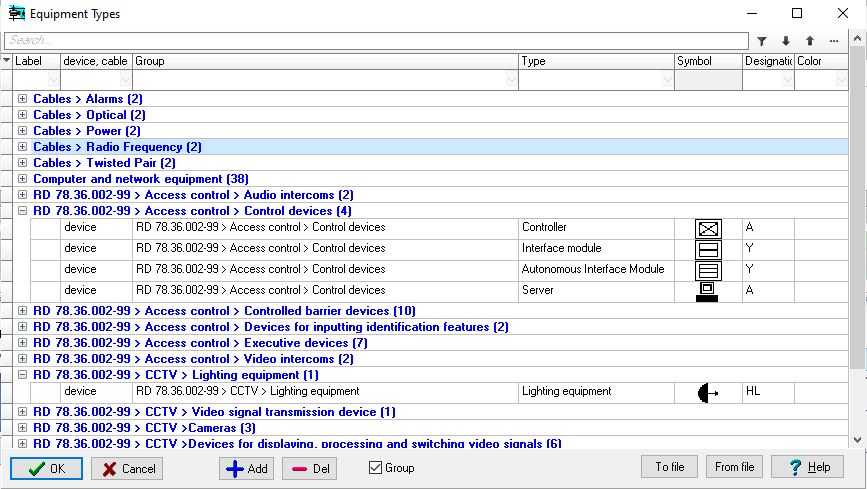
1. Open the Equipment Types library in any of the following ways:
•
Using the Types button on the Equipment Database toolbar.
•
Clicking the dotted icon in the corner of the Type field in the Equipment Database or Specification.
•
When adding a new equipment model, click the +New button in the Equipment Database.
2. Click the Add button on the library toolbar. A new row will appear in the table.
3. Set the parameters for the new equipment type. Select a value from the list in the Device, Cable field:
•
A device is any device that can be placed on a layout. In the Graphics window, devices are displayed as a rectangle with actual dimensions and a symbol. In 3D windows, devices are displayed as boxes with actual dimensions and device photo overlaid on them. If a photo is not assigned to a device, the device symbol is overlaid instead.
•
A cable can be placed on the layout and connect devices and cameras.
•
Other - equipment, materials, and labor. The placement of other items on the layout is not defined. Other equipment may only be listed in the Equipment Database and Specification and will be included in the total cost calculation.
4. The Group field can contain any name for a type group. Dividing types into groups makes it easier to find them in the table.
5. The Type Name field can contain any type name.
6.Symbol - an icon that will be used to represent equipment of this type on the layout. To load symbol, click the field and then click the arrow that appears in the upper right corner.
The size of the uploaded graphic file may be limited.
7.Designation - alphanumeric designation of equipment of this type.
8.Color - the color for this type of equipment. White indicates no color is assigned..
9. After filling in the new type, click Assign or OK.
4. Select the equipment type you want to add from the library and click the Assign button in the Equipment Types window.
When selecting a type, values are assigned to the fields in the Equipment Type section of the Equipment Database:
The remaining parameters are for reference only and can be used for creation of standard forms of Specification and Cable Log, convenient searching, filtering, and grouping of rows in the table. Filling them is optional.
6. After filling in all the fields, close the Equipment Tables and agree to the changes.