Import a camera, equipment or cable model using AI
Import a camera, equipment or cable model using AI |
|
|
|
|
|
||
|
Import a camera, equipment or cable model using AI |
|
|
|
|
|
|
|
|
||
Table of camera models All models Toolbar +AI
Equipment Tables Equipment Database Toolbar +AI |
To import any camera or other equipment model into the Table of Camera Model (Equipment Table) from the manufacturer's datasheet using Artificial Intelligence, you need a DeepSeek API Key. How to get the key: https://platform.deepseek.com
As of early 2026, DeepSeek's fee for parsing one datasheet of average complexity is ~ 0.005 USD.
| • | To import a camera model, click the +AI button on the Toolbar of the All Models tab of the Table of Camera Models window. |
| • | To import a model of other equipment or cable, click the +AI button on the Toolbar of the Equipment Database tab of the Equipment Table window. |
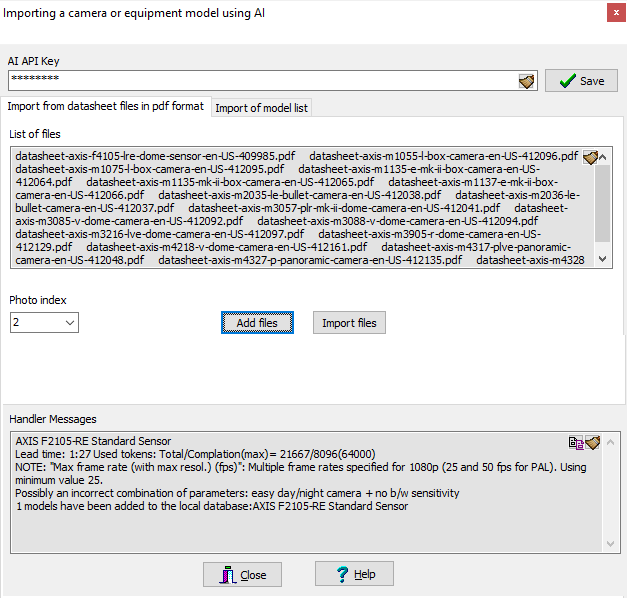
The Import a camera, equipment or cable model using AI window will open.
Paste the DeepSeek API key into the AI API Key box and click Save. The key will be saved in the program in encrypted form.
You can import models in two ways:
| • | from datasheet files in pdf format; |
| • | from a list of models. |
Import datasheet files in pdf format
Click Select files and select the PDF datasheet files. Multiple selections are possible.
The fields in the Import list of models tab can be left blank, but the completed fields will apply to all imported models.
In the Photo index combo box, choose experimentally the index of the image in the PDF file that will be imported as a model photo. Similar datasheets typically have the same photo index. Photos can be assigned after import is complete in the Table of Camera Model (Equipment Table).
After the list of read files appears in the window, click Import files. Processing files in a list is much faster than processing them one by one.
If importing from some files does not work due to difficulties converting these files, use Import list of models.
|
Select what you will import: Camera Model or Other equipment, cable or material.
Enter the Model name exactly as it appears in the manufacturer's datasheet.
Open the datasheet file on the monitor, select (Ctrl+A) and copy all the text (Ctrl+C) or part of the text related to the imported model, and then paste the copied text into the Datasheet Text field.
Some datasheets (Axis) only allow copying text page by page. It is necessary to paste text from all pages.
It is recommended to enter the Manufacturer and Web link to the Datasheet for corresponding fields in the tables.
If you haven't inserted the Datasheet Text but have provided a Web link to the Datasheet, the bot will attempt to read the datasheet file from the link. If the Web link to the Datasheet is also not provided, the bot will search for the datasheet online. However, as of early 2026, the bot demonstrated insufficient ability to search and read datasheets. Perhaps in the future, entering the Model name will be sufficient, but as of early 2026, inserting into the Datasheet Text provides the best reliability. If you do not specify a Model name but specify a datasheet, the bot will attempt to extract the Model name from the datasheet.
The accuracy and completeness of an imported model largely depend on the source of the parameters. Datasheets for new models are quickly found, but datasheets for discontinued models may not be available on the manufacturer's websites. Parameters from other sources often contain many errors. It is recommended to save on the disk the manufacturer's datasheets of models you use. If you cannot find the exact datasheet, request it from the manufacturer.
If necessary, add any information or rules that you want the bot to take into account to the Hints field in the form of free text.
The DeepSeek chatbot only analyzes text and does not recognize images. If you need to include information from images (form of case, color, multisensor camera type, etc.), you must explicitly add it as text. For example, if the datasheet doesn't describe the multisensor camera type, but it is clearly visible in the photo, you can add "multisensor camera with 2 modules," "modules can tilt independently," or "modules are rigidly connected, oriented horizontally, and cannot tilt," or "form: bullet." For standard cameras, you can skip the Hints, and the form and color can be corrected in the Table of Camera Models.
You can change the Options or leave them as default.
Copy the photo of the model from the datasheet.
Find the model photo, press Win+Shift+S on the keyboard and capture the photo with a frame with minimal margins.
By clicking the Paste Photo button, add the photo to the model. Photos can be assigned after import is complete in the Table of Camera Model (Equipment Table).
Сlick Add model.
After adding all models, click Import list. Processing models in a list is much faster than processing them one by one.
|
Completing all steps will result in a new row with a model in the Table of Camera Model or Equipment Database. The camera model can be assigned to the active camera and simulated, and the equipment model can be placed on the layout.
If multiple models are required in VideoCAD to describe all the model variants and components in the specification, multiple rows will be added. The difference will be noted in the Model Name.
AI bot searches the datasheet for over a hundred parameters. The bot inserts everything it finds into the imported model. By default, not all parameters are displayed in the Tables. To display more parameters, use Visibility of columns, Show all, Views, or the corresponding tools in the Equipment Tables.
Just like a human, AI may confuse parameters, misinterpret the datasheet, or forget Prompt rules. Errors can also occur in manufacturer datasheet. Secondary sources often contain errors.
Error control is carried out in 2 stages:
The Handler Messages box displays messages from the bot and the bot's response handler. If a model was imported with warnings or errors, try importing it again. If the same warning persists, we recommend investigating the cause.
|
See also: Adding a camera model to the Camera model database, Adding an equipment model to the Equipment Database