Territories Tool bar |

|

|

|

|

|
||
|
Territories Tool bar |
|
|
|

|

|

|
Territories
Tool bar
|
Territories Tool bar |
|
|
|
|
|
||
|
Territories Tool bar |
|
|
|
|
|
|
|
|
||
 |
| Click to Expand |
|
|
|
|
Buttons  ,
,  allow you to hide the Toolbar.
Close the Table of Territories
|
Recalculate territories and update the table data.
The table is recalculated when the Territories window is opened. To avoid unnecessary delays, the table is not automatically recalculated with every change in the project. After making changes to the project and before reading the table, you should recalculate the Territories Table to obtain up-to-date calculation results.
|
Area values in territories can be calculated in square meters (feet) or as % of the total area of the territory.
If the checkbox is checked, the area calculation results in the table will be as a % of the total area of the territory.
The row at the bottom of the Table of Territories columns will calculate the average area values (%) for all territories.
If the checkbox is unchecked, the area calculation results in these columns will be as absolute area values. The bottom of the Table of Territories columns will calculate the sum area values for all territories.
|
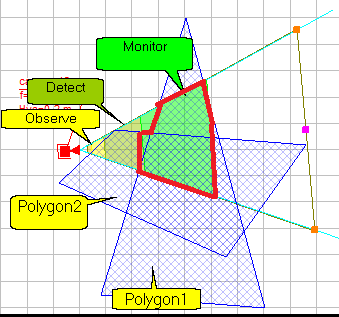
If the Intersections only checkbox is checked, the field shows the area of intersection of the territory with the corresponding pixel density region.
Example for the Monitor region:
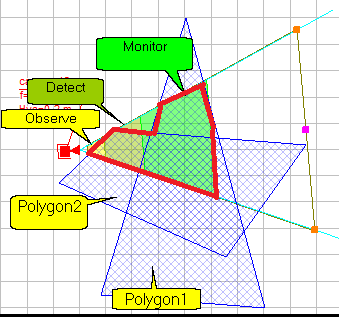
If the Intersections only checkbox is not checked, the field shows the area of the territory that satisfies the boundary value of the Criterion (“not worse than..”).
For example, area of a territory that satisfies the most stringent value of the "Identification" criterion satisfies all less stringent values of the criterion. Therefore, the area of the territory that satisfies the "Identification" value is calculated as the union of the "Identification" and "Recognition" regions. The area of the territory that satisfies the least stringent value of the "Observation" criterion is calculated as the union of all regions of the Pixel Density pattern.
|
Export the Table of territories to any of the following formats: *.txt, *.csv, *.htm, *.rtf, *.xls, OLEXLS, *.xlsX, *.xml. File format can be chosen in Save as dialog box appeared. If OLEXLS is selected, MS Excel opens (if installed) into which the exported table is loaded.
You can export selected fragments using pop-up menu.
See also: PDF report
|
Print full table or a selected fragment of the table. Print dialog box will open in which it is possible to adjust printing options.
See also: PDF report
|
Create a new Territory in the table.
After creation, specify the new territory's parameters in the Editable Parameters columns on the left side of the table.
The territory's name and description can be anything you like. Next, select the Pixel Density pattern used to calculate the territory. Check PTZ if the territory should take PTZ cameras into account. Next, select the color and hatching type for the territory on the layout.
To specify a parameter, click a table cell twice, at least half a second apart. To edit the selected cell, press Enter. Depending on the parameter type, cells may allow selection from a list or entry into a simple or complex drop-down form.
After creating a territory and filling in its parameters, you should add Polygons to it.
See more: Territory Parameters, Toolbar > +Add, Result in %, Intersections Only.
|
Delete the Territory selected in the table. If the Territory includes Polygons, the program will ask whether to delete them. If you decline, the Polygons will remain, but will be unlinked from the Territory. They can then be included in other Territories.
|
On the layout, each territory is bounded by one or more closed Polygons of arbitrary shape.
The Polygons must be located on the same layout and closed. Polygons may or may not intersect.
To add a polygon to the territory:
|
Find and select all polygons of the territory selected in the table on the layout in the Graphics window.
See also: Find on Layout, Find camera, Table of Cameras>Find on Layout, Table of Camera Models>Find on Layout, Equipment Tables>Find on Layout, Camera Groups>Find, Camera List>Find
|
Hide all polygons belonging to territories on the layout in the Graphics window.
|
View - is a set, width and order of visible columns. In real projects there is no necessity to use all parameters. At various times different parameters sets are necessary. You can hide unnecessary columns, arrange the rest columns in required order and save obtained view. After that at any moment you can restore the saved view (i.e. set and order of visible columns).
If necessary, you can change not only the positions and widths, but also the column headings in the language file.
The list contains Default Views. By selecting the desired View, you can immediately get a set of parameters ready for a specific task. You can edit default views and create your own views based on them.
The view PDF Report is used to set the set, order and column widths for the PDF report.
|
Compress columns so that the table is placed completely on the screen or restoring normal width of columns.
|
Hide selected columns.
To select a column, move the cursor to the border between the column header and the column data. The cursor should turn into a downward-facing arrow. Click on this border. To select multiple columns, hold down Ctrl or drag the cursor while holding down the left mouse button. To select a range of columns, hold down Shift.
See also: Visibility of Columns
|
Show all columns including hidden ones. .
|
Save current table view. Dialog box will open, in which it is necessary to enter view name. It may be a name of an existing View or a new name. The new name will appear in the Table view list.
|
In the list there are all earlier saved views of the table. To load a view, just choose its name in the list.
|
Delete the view, the name of which is displayed in the Table view list.
|
Call the dialog for setting up the report in PDF format.
|
See also: Territories, Table Interface, Pop-up menu, Parameters of Territory. Project Analysis. Working with Territories. Polygons included in Territories, PDF report>Territories