Equipment Tables Pop-up menu |

|

|

|

|

|
||
|
Equipment Tables Pop-up menu |
|
|
|

|

|

|
Equipment Tables
Pop-up menu
|
Equipment Tables Pop-up menu |
|
|
|
|
|
||
|
Equipment Tables Pop-up menu |
|
|
|
|
|
|
|
|
||
Pop-up menu appears at right-clicking on the Equipment Table.
Select equipment selected in the Table for placement or replacement
See: Select
|
Find and select selected equipment on the active layout
See: Find on Layout
|
See: +New
|
Duplicate selected row in the table
See: +Dupl
|
Delete selected row in the table
See: Delete
|
Copy entire Specification to Equipment database
All rows from the Specification will be copied to the Equipment Database. Parameters for models already existing in the Equipment Database will be overwritten.
|
Hide selected columns.
It is convenient to control the visibility of columns using the menu in the upper left corner of the table.
To select a column, move the cursor to the border between the column header and the column data. The cursor should turn into a downward-facing arrow. Click on this border. To select multiple columns, hold down Ctrl. To select a range of columns, hold down Shift or drag the cursor while holding down the left mouse button.
|
Freeze columns up to selected one
Freeze columns, beginning from the left column up to selected one. Frozen columns will not be moved at horizontal scrolling of the table.
|
Show all columns including hidden ones.
|
Hide the Toolbar below tables. You can use the buttons in the upper left corner of the Toolbar.:
|
Cut contents of selected cells to the clipboard. The cut contents can be pasted to other cells of the table or to Excel table.
|
Copy contents of selected cells to the clipboard.
The copied contents can be pasted to other cells of the table or to Excel table.
|
Paste clipboard contents to the selected cells.
The content can be copied from other sells or from Excel table. The copying cell number and types of data in the copying cells should coincide.
See also: Paste text in selection
|
Clear selected cells..
|
Export selected fragment to any of the following formats: *.txt, *.csv, *.htm, *.rtf, *.xls, OLEXLS, *.xlsX, *.xml. File format can be chosen in Save as dialog box appeared. If OLEXLS is selected, MS Excel opens (if installed) into which the exported table is loaded.
|
Import into selected fragment from formats: text and unicode text. The file format is selected in the open file dialog.
It is convenient to import data through the clipboard, by copying tables or table fragments from MS Excel and pasting equipment models into the Table.
The item is available only in the pop-up menu of the Equipment Database tab.
|
Print selected fragment of the table. Print dialog box will open in which it is possible to adjust printing options.
|
Paste the same text from the clipboard into all cells of the selected fragment. This item is convenient for group modification of model parameters.
The item is available only in the pop-up menu of the Equipment Database tab.
See also: Paste
|
Leave only selected models visible, hide other models. The tool is useful for comparing models in conjunction with the Highlight differing parameters and Show differing parameters only tools.
|
Highlight differing parameters
Highlight parameters that do not match for all displayed models. The tool is useful for comparing models in conjunction with the Filter out selected models and Show differing parameters only tools.
Sequence of actions for comparing models:
Instead of points 1 and 2, you can simply use filtering.
The tool does not affect calculated parameters (current consumption, total price..).
|
Show differing parameters only
Hide parameters that match all displayed models The tool is useful for comparing models in conjunction with the Highlight differing parameters and Filter out selected models tools.
Sequence of actions for comparing models:
1. Select rows of the table for comparison by successive mouse clicks on the left ends of the rows, holding Ctrl to select arbitrary rows or Shift to select a range of rows. 2. Click Filter out selected models. As a result, only rows with models to compare should be displayed.
Instead of points 1 and 2, you can simply use filtering.
3. Click Show differing parameters only or Highlight differing parameters.
The tool does not affect calculated parameters (current consumption, total price..).
|
Select all cells.
|
This item allows you to enable or disable grouping mode.
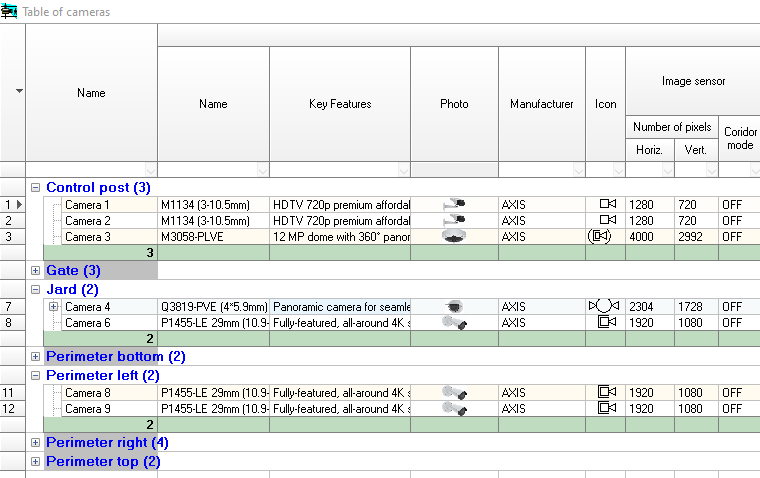
In the group mode, table rows are grouped by column values. For example, cameras and devices can be displayed in groups rather than individually. The Devices group can be further subdivided into Power Supplies, Routers, Control Panels, Detectors, Alarms, Readers, DVRs, and so on. Cables can be displayed in groups by layout, layer, or cable type. For each group, sum values are calculated for certain columns.
You can manage grouping by the most commonly used columns by simply checking the Group checkboxes in the Toolbar. You can manage grouping by all columns or any combination of them using the Grouping Panel.
See also: Group, Show Grouping Panel
|
Show the Grouping Panel at the top of the table to group table rows by values in any columns or any combination of them.
You can manage grouping by the most commonly used columns by simply checking the Group checkboxes in the Toolbar.
To create a group by any column, simply select this menu item and drag the desired column headers onto the Grouping panel above the column headers. The Grouping panel lets you build complex hierarchical structures, turning tables into trees. Grouping mode must be enabled.
See also Group, Group table rows
|
Call the dialog for searching cells containing the desired parameter value. The dialog has many options.
See also Searching by parameter value, Find on Layout
|
Internet link is a parameter too. To each model an Internet link to more detailed information can be assigned.
|
Open help system topic with description of the parameter in the selected cell.
Effect of the item is similar to F1 pressing.
|
Update devices or cables of selected model on layouts
At changing model parameters in the table, the parameters of equipment of this model, do not change automatically.
Choose this item to bring parameters of all equipment of the selected model in correspondence with the parameters of this model.
If the item is called from the menu of the Equipment Database tab, the model selected in the table is first copied to its copy on the Specification tab, and then the parameters of all equipment of this model are updated.
|
Update all devices and cables on layouts
At changing model parameters in the table, the parameters of equipment of this model, do not change automatically.
Choose this item to bring parameters of all equipment in correspondence with the parameters of all models.
If the item is called from the menu of the Equipment Database tab, then all models in the table is first copied to its copy on the Specification tab, and then the parameters of all equipment of this model are updated.
|
Restore Equipment Database (Specification, Cable Log) from backup
VideoCAD stores 2 latest versions of databases just in case of failure. To restore, select the version in the submenu. Backup 1 is the most recent.
It is recommended to additionally make regular backup copies of databases after each major change.
|
See also: Equipment Table, Table Interface, Toolbar, Equipment parameters

 - show.