|
|


Current construction parameter panel Cables |

|

|

|

|

|
||
|
Current construction parameter panel Cables |
|
|
|
|

|

|
Current construction parameter panel
Cables
|
|
|
Current construction parameter panel Cables |
|
|
|
|
|
||
|
Current construction parameter panel Cables |
|
|
|
|
|
|
|
|
||
You can select and edit the entire cable, like other constructions, or edit individual cable nodes.
See more details.

In the box on the left you can see the length of the cable.
In the  box, you can specify the height to which all selected objects should be lowered or raised. Clicking the buttons next to the box will increase or decrease the height above ground of all cable nodes by the value specified in the box. When raising or lowering, the relative heights between nodes are maintained, allowing you to raise the cable to a higher floor.
In the Height Above Ground  box you can assign the same height to all cable nodes.
Cable heights are measured relative to the base height of the layer to which the cable belongs.
The  button allows you to replace the cable model on the layout with any other from the Equipment Database or Specification. Clicking this button will open the Equipment Tables.
To select equipment not present in the project, go to the Equipment Database tab. To select equipment already in the project, go to the Specification tab.
Select the equipment model to replace and click the Select button on the Equipment Tables toolbar.
Before the replacement, a dialog box will appear allowing you to select which parameters of the placed equipment should be replaced and which should remain unchanged.
The  buttons control the appearance of the designation of all cable nodes on the layout.
 edit the designation. When renaming, you will be prompted to keep the numbering.
 show/hide the alphanumeric designation.
 show/hide the extension line.
 show/hide the equipment model name in the designation.
 show/hide the equipment installation height in the designation.
The color setting buttons on the layout, in 3D and when printing work as usual.
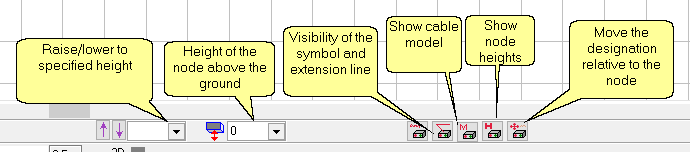
In the box you can specify the height to which the edited cable node should be lowered or raised. Clicking the buttons next to the box will increase or decrease the cable node's height above the ground by the value specified in the box.
The height of the node above the ground is displayed and can be changed in the box. .
The height of the cable node is measured relative to the base height of the layer to which the cable belongs.
The buttons  control the appearance of the cable designation next to the node being edited. You can display a different designations next to each cable node, or not display it at all.
show/hide the alphanumeric designation.
show/hide the extension line.
show/hide the equipment model name in the designation.
show/hide the equipment installation height in the designation.
The  button allows you to move the designation relative to the cable node on the layout. To move the designation, click this button and click to set a new location for the designation.
See also: Scalable
The offset of the designation relative to the equipment and the device symbols can be scalable (having actual dimensions on the layout at any zoom level) or non-scalable (having constant dimensions on the screen at any zoom level). Scalable and non-scalable offsets are independent and are stored separately.
You can make the equipment symbol and offsets scalable or non-scalable, along with the callouts of the Cable control box, using the Scalable checkbox in the Options box.
See also: Device symbol>Scalable, Font>Scalable, Camera Icon>Scalable, Illuminator icon>Scalable