Territories Pop-up menu |

|

|

|

|

|
||
|
Territories Pop-up menu |
|
|
|

|

|

|
Territories
Pop-up menu
|
Territories Pop-up menu |
|
|
|
|
|
||
|
Territories Pop-up menu |
|
|
|
|
|
|
|
|
||
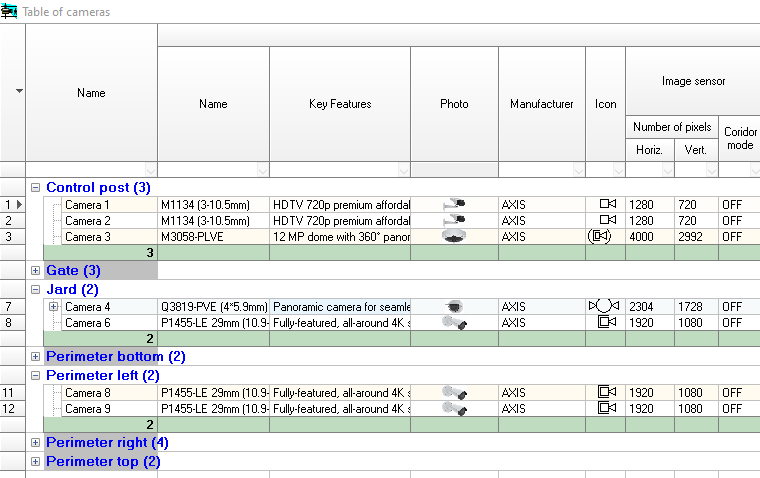
Pop-up menu appears at right-clicking on the Table of Territories.
Hide selected columns.
It is convenient to control the visibility of columns using menu in the upper left corner of the table.
To select a column, move the cursor to the border between the column header and the column data. The cursor should turn into a downward-facing arrow. Click on this border. To select multiple columns, hold down Ctrl. To select a range of columns, hold down Shift or drag the cursor while holding down the left mouse button.
|
Freeze columns up to selected one
Freeze columns, beginning from the left column up to selected one. Frozen columns will not be moved at horizontal scrolling of the table.
|
Show all columns including hidden ones.
|
Hide the Toolbar below tables. You can use the buttons in the upper left corner of the Toolbar.:
|
Copy contents of selected cells to the clipboard.
The copied contents can be pasted to Excel table.
|
Export selected fragment to any of the following formats: *.txt, *.csv, *.htm, *.rtf, *.xls, OLEXLS, *.xlsX, *.xml. File format can be chosen in Save as dialog box appeared. If OLEXLS is selected, MS Excel opens (if installed) into which the exported table is loaded.
|
Print selected fragment of the table. Print dialog box will open in which it is possible to adjust printing options.
|
Select all cells.
|
Recalculate the Table of Territories
See Toolbar>Calculate
|
This item allows you to enable or disable grouping mode.
In the grouping mode, table rows are grouped by column values. For example, territories can be displayed in groups by layouts, Pixel density patterns or labels. For each group, sum values are calculated for certain columns.
See also: Show grouping panel
|
Show the Grouping Panel at the top of the table to group table rows by values in any columns or any combination of them.
To create a group by any column, simply select this menu item and drag the desired column headers onto the Grouping panel above the column headers. The Grouping panel lets you build complex hierarchical structures, turning tables into trees. Grouping mode must be enabled.
|
Call the dialog for searching cells containing the desired parameter value. The dialog has many options.
See also Searching by parameter value, Find on Layout
|
Open help system topic with description of the parameter in the selected cell.
Effect of the item is similar to F1 pressing.
|
See also: Territories, Table Interface, Tool bar, Parameters of Territory. Project Analysis. Working with Territories. Polygons included in Territories, PDF report>Territories

 - show.