Table of camera models Table Interface |

|

|

|

|

|
||
|
Table of camera models Table Interface |
|
|
|

|

|

|
Table of camera models
Table Interface
|
Table of camera models Table Interface |
|
|
|
|
|
||
|
Table of camera models Table Interface |
|
|
|
|
|
|
|
|
||
To select model (row) bring the cursor to the left end of the row. The cursor should become a right arrow To select several arbitrary rows, hold Ctrl; to select a range of rows, hold Shift. To select adjacent models use up arrow and down arrow keys. By pressing the down arrow key on the bottom row, new model will be created.
|
To select a column bring the cursor to the border between header and data of the column. The cursor should become down arrow To select several columns hold Ctrl. To select range of columns hold Shift or move the cursor, holding the left mouse button.
|
Bring the cursor to a corner cell of a fragment, press the left mouse button and then move the cursor, holding the left mouse button pressed. After selecting the fragment release the left mouse button.
|
To select a cell, click on it. To edit, click on the selected cell once again. It is possible to move around the cells using keys with arrows. For editing press Enter.
Depending on type of parameter, the cells may allow the selection from a list, enter into a simple or complex drop-down form.
When clicking on a cell with a photo, the Сamera model card window appears with an enlarged photo, and instead of a drop-down list, a menu appears allowing you to cut, copy, paste, delete, load from a file or save a photo to a file.
|
Bring the cursor to border of a column on the header. The cursor will become a double arrow
|
Bring the cursor to border of a row on the left edge of the table. The cursor will become a double arrow
You can change height only for all rows simultaneously.
|
To move a column, place the cursor on the column header. Press the left mouse button and move the cursor. After moving column, release mouse button.
To move a row, place the cursor over the leftmost column with the row number. The cursor will look like an arrow to the right.
Select the row by clicking. Then press the left mouse button. A red line appears above the row. Move the cursor along the left column with row numbers. After moving the red line to the target of moving the row, release the mouse button.
To make a model a modification of another model, start the same way as when moving a row, but before releasing the mouse button, move the cursor to the right to the next column. The red line will move to the right. To make a modification an independent model, move it with pressing to the left edge of the table. Before releasing the mouse button, the red line will shift to the left.
See also: +Mod (create modification of the model)
|
You can adjust visibility of columns, save and restore table structures as Views.
To show/hide any particular column:
You can also hide columns by selecting them and then choosing Hide selected columns in the context menu.
See also: Table tool bar>Views.
|
You can adjust visibility of columns, save and restore table structures as Views.
See also: Table tool bar>Views.
|
To sort by the parameter value in the column, just click on the column header. Reclick changes sort order to the reverse one.
To sort by multiple columns, hold Ctrl while clicking on headings.
|
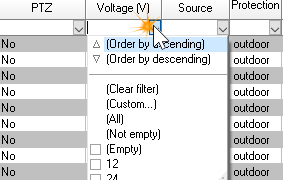
Click on the arrow in the combo box at the column top (between parameters values and header) and choose parameter value from the list.
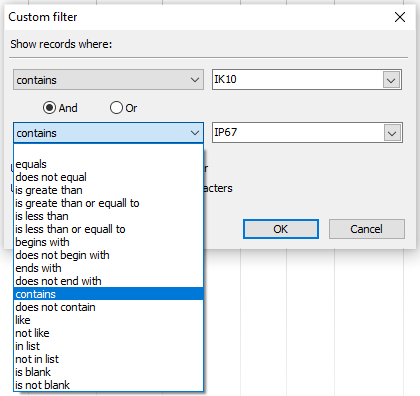
In this combo box you can specify following filters:
You can set filters in multiple columns at the same time.
See also: Camera model filter
|
In the lower left corner of the table, above the toolbar the search bar is located. To search the entire table of cells containing specific values, enter this value in the search bar. Already in the process of typing the found matches in the table will be highlighted in yellow.
The number of matches found to the right of the search string is displayed. More to the right there are the buttons for displaying rows with search results, navigating through search results, and calling the search options menu.
|
You can open the panel by clicking on the cross at the left end of the line. The panel compactly displays photo and the most important parameters of the camera model: model name, camera type, key feature, sizes and resolution of the image sensor, lens focal lengths, viewing angles, distance of the built-in IR illumination, environmental protection, supply voltage, manufacturer, vendor, cost. By clicking on the photo area, you can open the Сamera model card box.
|
See also: Table of camera models, Tool bar, Pop-up menu, Parameters of camera models.
 . Then click on this place. The selected row will be highlighted and marked by the sign
  .
. . Click on this border.
 . Press the left mouse button and move the cursor. After getting the necessary width release the mouse button.
 . Press the left mouse button and move the cursor. After getting the necessary height release the mouse button.