Camera Geometry |

|

|

|

|

|
||
|
Camera Geometry |
|
|
|

|

|

|
Camera Geometry
|
Camera Geometry |
|
|
|
|
|
||
|
Camera Geometry |
|
|
|
|
|
|
|
|
||
Camera Geometry box includes geometric parameters of active camera, lens and installation parameters as well as camera resolution in pixels.
|
|
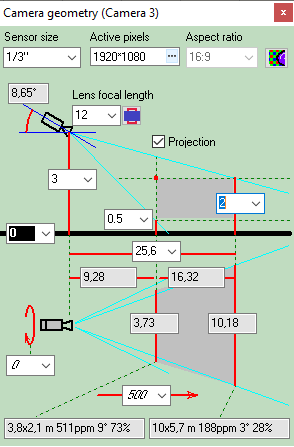
In the Camera Geometry box, geometric parameters of the active camera view area in the horizontal and vertical planes are displayed.
The image in the Camera Geometry box represents two projections of view area, parted by the horizontal black line corresponds to the ground in the vertical (upper) projection.
In multi-level projects, the ground is the base height of active camera.
The red lines mark the sizes, the green dash lines specify auxiliary constructions, the dark blue lines designate the camera tilt angle, and the turquoise ones mark the space bounds of camera view area.
The actual projection of view area as a result of calculations is filled by grey color.
The camera location and calculated parameters are displayed in the text boxes next to the camera icon and the red dimension lines. The parameters in the white boxes can be changed, by choosing them from list or by typing. When any of the parameter is changed, the values of the rest parameters are recalculated.
You can change any parameters of all selected cameras simultaneously. For this purpose:
| • | Select necessary cameras on the layout |
| • | Right click on the combo box, then click on the Assign to selected cameras pop up item. |
The parameters in the grey text boxes are results of calculation and can be changed only through changing the parameters in the white boxes.
The linear parameters are entered and outputted in meters or feet according to the measurement system set in the project, if not specified otherwise on the image. The angular parameters are inputted and outputted in degrees.
When an incorrect value is entered the box turns red. When an incorrect value ratio is ensued from the input, all boxes with the values of mutually incorrect ratio turn red. If calculation with incorrect values is still possible and has sense, the program nevertheless performs it. In this case check the results carefully. You can see the source of mistake in the graphics window.
If the image of view area changes radically with new values, the image in the Camera Geometry box changes correspondingly, thus the arrangement of parameter boxes are changed too. Watch carefully the image changed, since with the image alteration the parameter boxes might interchange their positions.
The parameters in the Camera geometry box can not reflect the shape of view area rotated around its main optical axis, it is impossible to reflect changing projections under the influence of lens distortion. So the lens distortion and rotation around an axis within + -45 degrees does not affect the parameters. The parameters of the Camera geometry box continue to show values as if the camera is not rotated.
When the rotation angle is more than 45 degrees, the parameters abruptly change their values to ones corresponded to the camera rotated on 90 degrees. When the rotation angle is more than 135 degrees, the parameters will reflect the initial position of the camera.
See also: Parameters in the Camera Geometry box
External link: "The principles of CCTV design in VideoCAD. Part I. Camera view area"(*.pdf) .